
I’m Not Receiving a Signal From My Microphone, What Do I Do?
Are you struggling with a microphone signal that just won’t pick up sound? It can be extremely frustrating when your work is held up by being unable to capture audio. Fortunately, there are several reasons why your microphone might not be working properly and solutions to fix them. In this troubleshooting guide, we’ll take a closer look at some common issues that can cause a microphone to malfunction, as well as steps you can take to get it back up and running. Let’s dive in and get your microphone working again!your microphone might not be working properly, along with
Also available on our YouTube channel ↗
Microphone Signal Problems: Our Ultimate Guide To Fix It
No Signal
The first thing to check, no matter how obvious it may sound, is to check all connections and ensure that everything is plugged in securely.
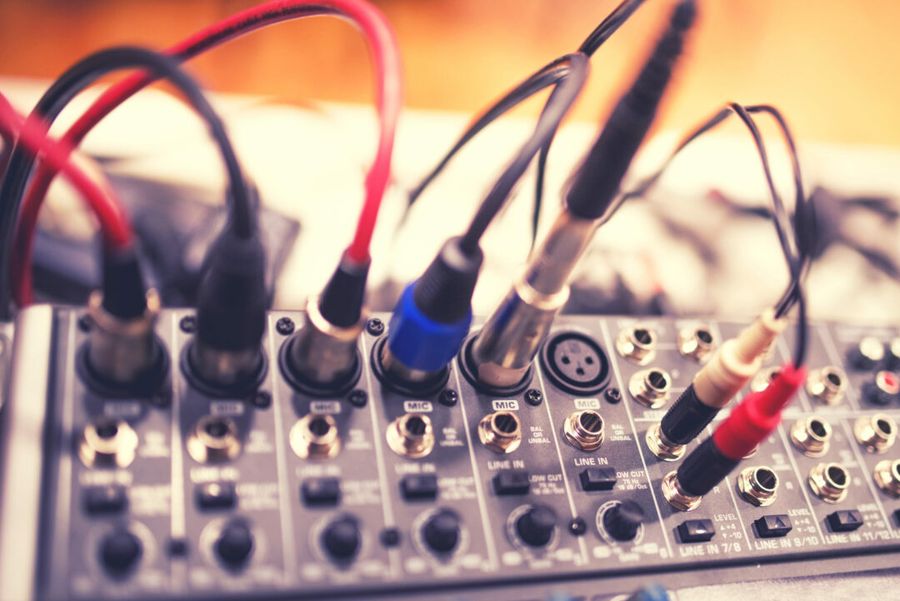
Second, check that the correct input is selected on your recording device and that your input levels are turned up. It is very easy to connect your microphone to Input 1 (Channel 1) b, but have Input 2 (Channel 2) turned on. Many devices have multiple input options, such as a microphone level or a ,line-in level. Make sure that you have selected the correct input options for your microphone. If the wrong setting is selected the signal level can be so low that it may appear that there is no signal.
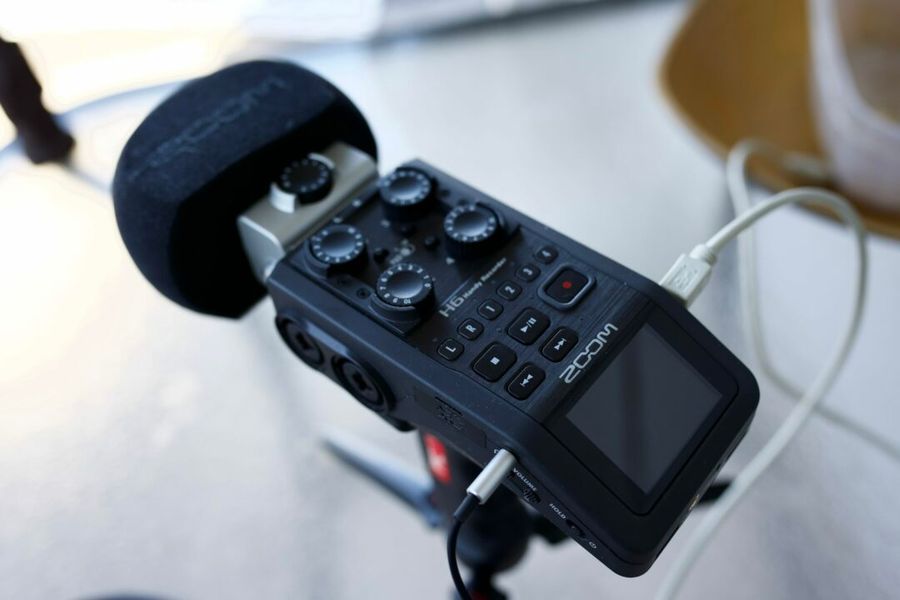
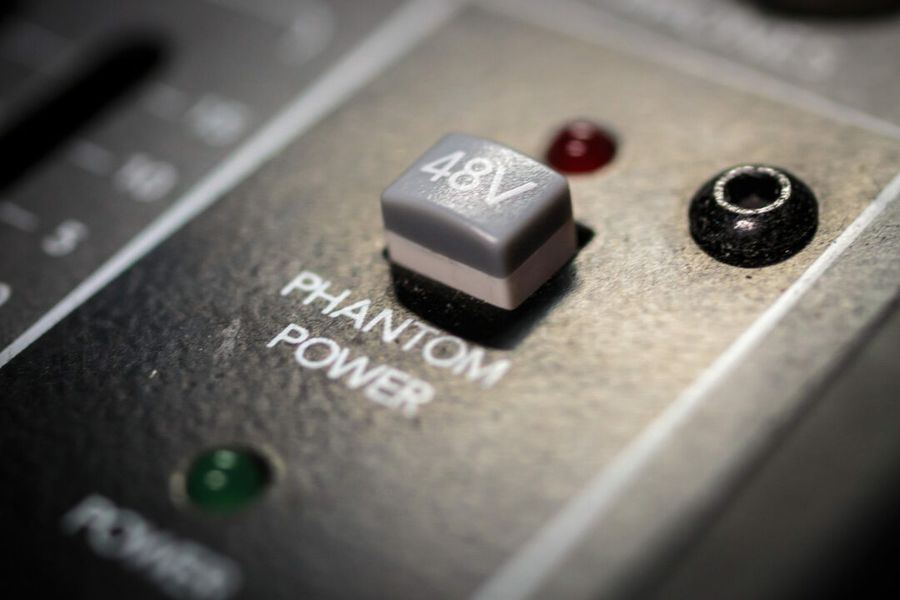
Third, check that your microphone is supplied with any required power. Most microphones require some external power. We have blog posts describing the common types of external power, phantom power, and plugin power. Verify whether your microphone requires one of these external power types. If it does, ensure the external power is turned on or activated on your input device. Mixing boards, audio recorders, and digital cameras all have ways to turn these external power sources on or off.
These three items are by far the most common causes of lost microphone signals. However, if you are using recording software, the settings could also cause the problem. Ensure all your recording software settings are correctly configured, including your sample rate, bit depth, and other optionselectronic devices can interfere with your microphone, especially whenTry moving your microphone and cables away from other electronics or turning off other devices in the area to see if this resolves the issue..
Very Low Signal
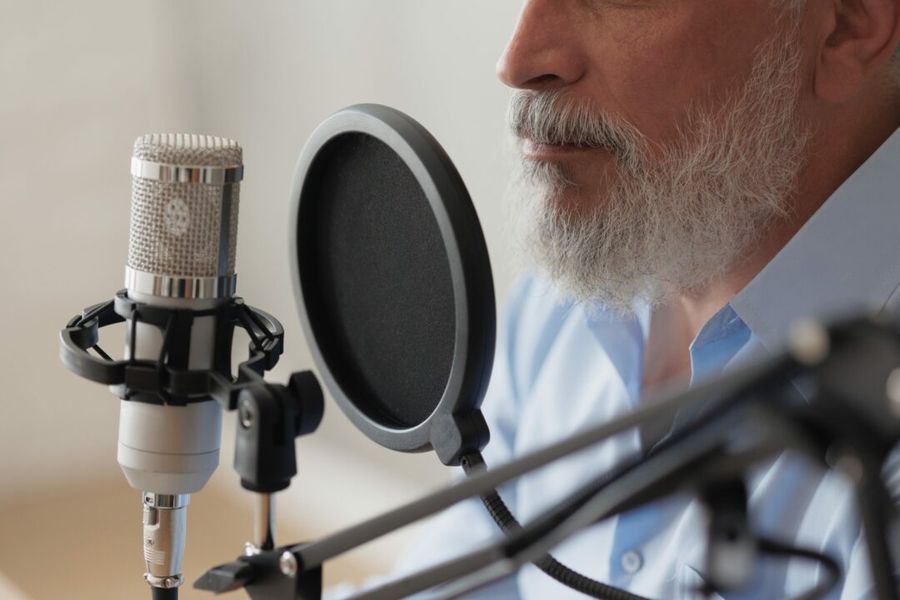
If a signal is present but too low to be useful, verify that the microphone has the correct polar pattern for the situation and that the microphone is as close as possible to the audio source. Microphones have far less range than many people realize.
Signal Has Noise
If a signal is present, but you are experiencingelectrical noise or interference, troubleshooting steps will be required to identify the root cause of the problem. To narrow down where the problem lies, it is important to isolate it by changing one variable at a time and seeing if that resolves the issue.
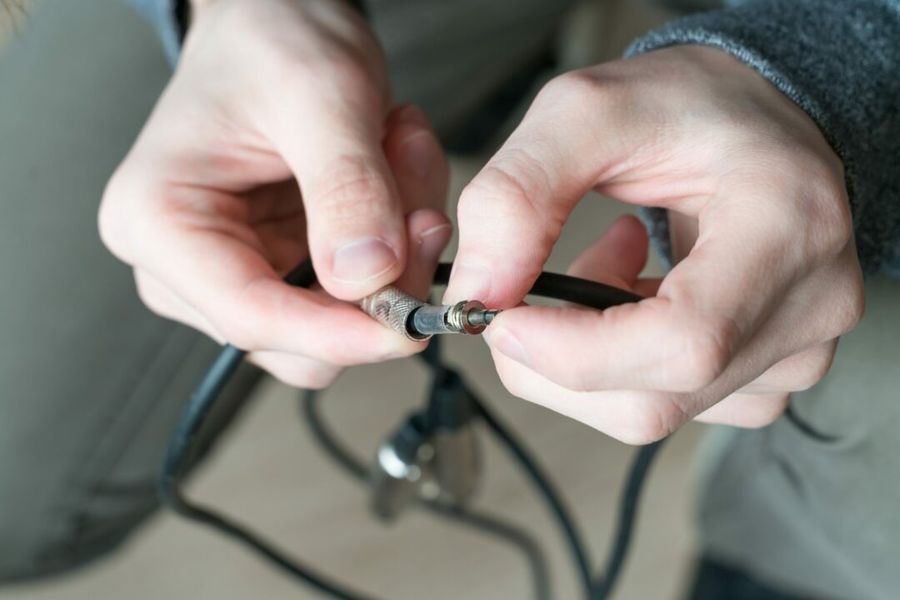
For instance, if you are having trouble getting clear sound from your microphone, try using a different one to see if that makes any difference. Then replace one cable at a time. Then try a different input jack. This step-by-step approach can help you identify any hardware issues.
Sometimes, other electronics or devices can cause interference with your microphone, especially if unbalanced TRS inputs are used. Try moving your microphone and cables away from other electronics, or turning off other devices in the area, to see if this resolves the issue.
Conclusion
In conclusion, a malfunctioning microphone is a common problem that can easily be solved with some troubleshooting. Knowing the potential issues and solutions, you can quickly get your microphone back up and running. Remember to check your connections and settings to ensure your microphone is properly configured. And if all else fails, don’t hesitate to seek assistance from the manufacturer or a professional.
We hope you found this blog useful! Check out our Learning Hub for further tips.